24 Jul 2026 · Gopal
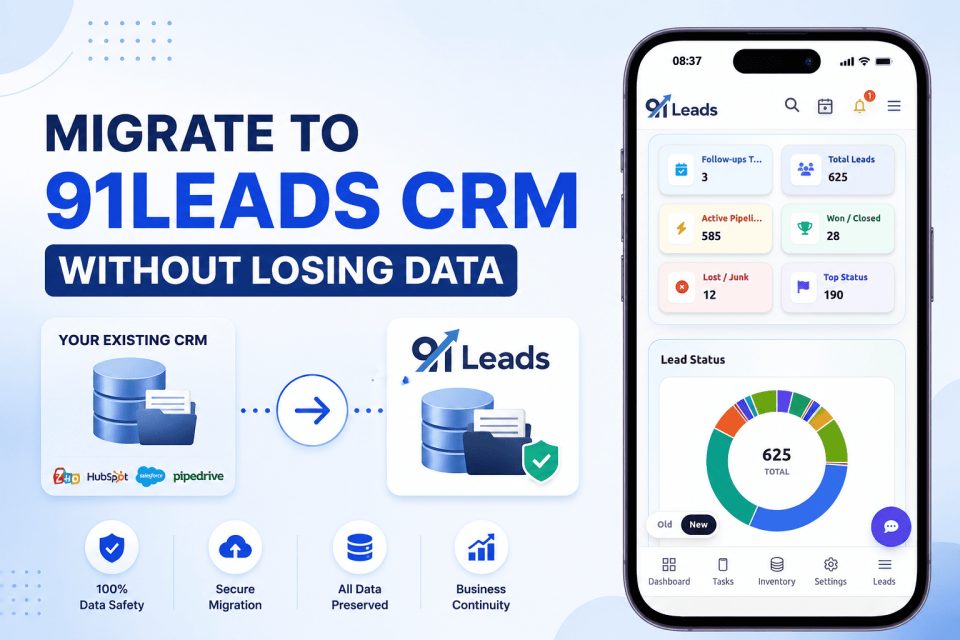
How to Migrate from Another CRM to 91Leads Without Losing Data
Thinking of switching to a better CRM but worried about losing your customer data? This guide explains how to migrate from your existing CRM or Excel to 91Leads safely. Learn the complete CRM migration process, from data cleaning and field mapping to importing records and training your team, so you can transition smoothly without disrupting your sales operations.
Many businesses already using a CRM, but over time they become unhappy, dissatisfied with the service provider due to service issues, high subscription costs, limited features, etc.
While more pocket friendly and affordable CRM with more features are available in market, many businesses hesitate to switch to new CRM because they assume migration process is very complicated, costly, time taking and their day-to-day work routine will be affected.
A common concern every business thinks are given below
-
Loss of customer data
-
Disruption in ongoing activities
-
Loss of valuable time of sales person
-
Wasting time again in cleaning and transforming data
Business has to understand that a well-planned CRM migration and proper assistance from service provider can make the migration process smooth, secure, and risk-free.
It does not matter whether you are using spreadsheets, excel, or another CRM platform, if you follow the right migration process, customer data remains accurate and sales team can continue working without any interruption in their work.
This blog will walk you through the best practices for migrating from your existing CRM to 91Leads without losing valuable business data.
Why Businesses feels need to Switch CRM Software
Some common reason why Businesses usually migrate to a new CRM are given below
-
Complex user interface
-
High subscription costs
-
No or Limited automation features
-
Poor customer support
-
Difficulty managing leads efficiently
-
No customization support
In short, when business feels that CRM is no longer meets their growing needs and they are not getting proper support, they switch to another CRM.
A CRM is meant to simplify your sales process not to create additional and complicated work.
Also Read: What is a CRM? How Does It Work? Benefits of CRM for Every Business
Steps to migrate from on CRM to another CRM
-
Step 1: Proper Audit Your Existing CRM Data
Businesses should review CRM database before exporting anything to another CRM.
Following is common checklist for migration of CRM:
-
Duplicate contacts
-
Inactive leads
-
Missing phone numbers or email addresses
-
Incorrect company details
-
Outdated leads
-
Invalid / Junk leads
Business should clean their database before migration to another CRM; this reduces clutter and
improves reporting in your new CRM.
Also Read: CRM Data Hygiene: How Neglected Data and Records are Killing Your Sales. How to clean It?
-
Step 2: Export of Data into CRM
Many CRM platforms support CSV or Excel format and allow you to export data in the same
format. Businesses should Export the following:
-
Leads
-
Customers
-
Contacts
-
Companies
-
Deals
-
Follow-up activities
-
Notes
-
Tasks
-
Invoices
-
Recordings
Businesses should keep a backup copy of every file, database existing CRM before and switching
to new CRM and making any changes.
Also Read: 10 Signs Your Business Has Outgrown Excel for Lead Management
-
Step 3: Organize Data
Review your spreadsheet and standardize information.
-
Consistent phone number format
-
Proper capitalization
-
Valid email addresses
-
Standard lead source names
-
Correct city and state values
Well-organized data imports faster and prevents duplicate records.
-
Step 4: Map Your Fields
Every CRM has different methods and formats to store information. You have to download the
format from 91leads and convert your existing database as per the formats of the 91leads CRM.
Example:
|
Current CRM Field |
91Leads Field |
Description |
|
Lead/Customer Name |
Lead Name |
Name of the prospect or customer |
|
Mobile Number |
Phone Number |
Primary contact number |
|
Email Address |
|
Customer email address |
|
Company Name |
Organization |
Business or company name |
|
Lead Status |
Lead Stage |
Current stage in the sales pipeline |
|
Sales Representative |
Assigned Executive |
Salesperson responsible for the lead |
|
Lead Source |
Lead Source |
lead generation from Website, Facebook, Referral, Website Form, etc. |
|
Follow-up Date |
Next Follow-up |
Scheduled follow-up date |
|
Notes |
Notes |
Customer interactions, comments, and meeting details |
|
Tags/Labels |
Tags |
Used to categorize and filter leads |
|
City |
City |
Customer's city |
|
State |
State |
Customer's state or region |
|
Deal Value |
Expected Revenue |
Estimated value of the sales opportunity |
|
Custom Fields |
Custom Fields |
Any additional business-specific information |
Mapping of field ensure that all date and every piece of information maps the correct location.
-
Step 5: Import Your Data
Now, to import your data, upload your cleaned CSV or Excel files into 91Leads.
During import:
-
Verify and match mandatory fields
-
Match custom fields correctly
-
Review sample records before final import
-
Check for duplicate detection options
For large database, importing in batches is easier.
-
Step 6: Verify Everything
After migration, validate your data.
Verify:
-
Total number of leads
-
Customer information
-
Notes
-
Lead stages
-
Assigned sales representatives
-
Follow-up reminders
Randomly compare records from your old CRM with those in 91Leads.
-
Step 7: Training of team
If your team don’t understand how to use the new CRM system, then in that case even the best
CRM migration can fail.
A mandatory training sessions shall be organized for the team. The training session shall be
covering:
-
Adding leads
-
Managing follow-ups
-
Updating lead status
-
Recording calls
-
Viewing reports
-
Using reminders
-
Task allocation
-
customization
User acceptance test is just as important as data migration.
Common CRM Migration Mistakes to Avoid
Some common errors in migration shall be avoided:
-
Migrating duplicate records
-
Importing outdated leads
-
Ignoring field mapping
-
Skipping data validation
-
Forgetting to back up old data
-
Migrating unnecessary custom fields
Proper data migration Planning ahead saves hours of troubleshooting later.
Benefits of Migrating to 91Leads
After migration, businesses typically experience:
-
Faster lead management
-
Better follow-up tracking
-
Centralized customer information
-
Improved sales visibility
-
Automated reminders
-
Easier team collaboration
-
Actionable sales reports
With the help of service support of 91leads, you can ensure proper migration of customer data so that instead of spending time searching for customer information, sales team can focus on closing more deals.
Best and effective Practices for a Smooth CRM Migration
-
Back up all existing data.
-
Clean duplicate and outdated records.
-
Map fields carefully.
-
Test with a small sample before full import.
-
Validate imported data.
-
Train users before going live.
-
Monitor the first few weeks after migration.
Final Thoughts
Business should choose a CRM so that migrating to a new CRM doesn't have to be stressful. The migration of data should be very easy and quick. With proper migration planning, data cleaning, and with a proper structured migration process, you can move to 91Leads without losing valuable customer information.
Migration of data successfully, lays the foundation of better lead management, reduce valuable time lapse, improved sales productivity, and more help businesses to take proper decisions.
Also Read: How a CRM Improves Team Productivity
In short, investing a little extra time for planning your data migration, cleaning your data, and mapping your data fields correctly can save countless hours of fixing errors later.
As the famous quote attributed to Abraham Lincoln says:
"Give me six hours to chop down a tree and I will spend the first four sharpening the axe."
Taking the time to prepare your CRM migration is similarly like sharpening the axe - it makes the entire process smooth, fast and successful.